Integration
reOtter + Klaviyo: AI Replenishment for Your Klaviyo Flows
reOtter predicts per-customer reorder timing and pushes a metric event into Klaviyo. Your Klaviyo flows trigger on that event and send the message with your segments, templates, and deliverability. Every message links to a personalized one-click reorder storefront. You own the copy; reOtter does the prediction. This guide walks through connecting, configuring triggers, testing, and building flows.
What reOtter + Klaviyo does
reOtter predicts when each customer is about to run out of a consumable product and pushes that moment into Klaviyo as a custom metric event, so a Klaviyo flow you build sends the reorder message using your own templates and segments. reOtter handles the prediction — per customer, per SKU, per lifecycle stage — and Klaviyo handles the delivery. Nothing about your sending stack changes: same brand, same deliverability, no new inbox. Every message links to a personalized one-click reorder storefront where the customer's exact items are pre-loaded for checkout.
This is the most common way brands run reOtter, because Klaviyo is already where most Shopify consumable brands manage email and SMS. reOtter slots in as the timing layer on top of the flows you've already built.
How the integration works
reOtter does the math; Klaviyo does the message. End to end:
- reOtter predicts the reorder moment. It models each customer's depletion date per SKU from your Shopify purchase history, then waits for the window you set.
- reOtter pushes an event into Klaviyo. When a customer is due, reOtter fires a custom metric event into your Klaviyo account with the full payload: the customer, the product(s), quantity, the predicted dates, the trigger type, any applicable discount, and a unique link to that customer's reorder storefront.
- Your Klaviyo flow sends it. You build a flow triggered by the reOtter metric. It renders with your templates and dynamic blocks, applies your segments and send rules, and goes out under your brand's deliverability.
- The customer lands on a one-click reorder storefront. The link resolves to a personalized page pre-built with the items they bought, ready for one-click checkout — no catalog search, no rebuilt cart.
You own the templates and the timing. reOtter pushes the event; your channel handles delivery.
Step 1 — Connect Klaviyo
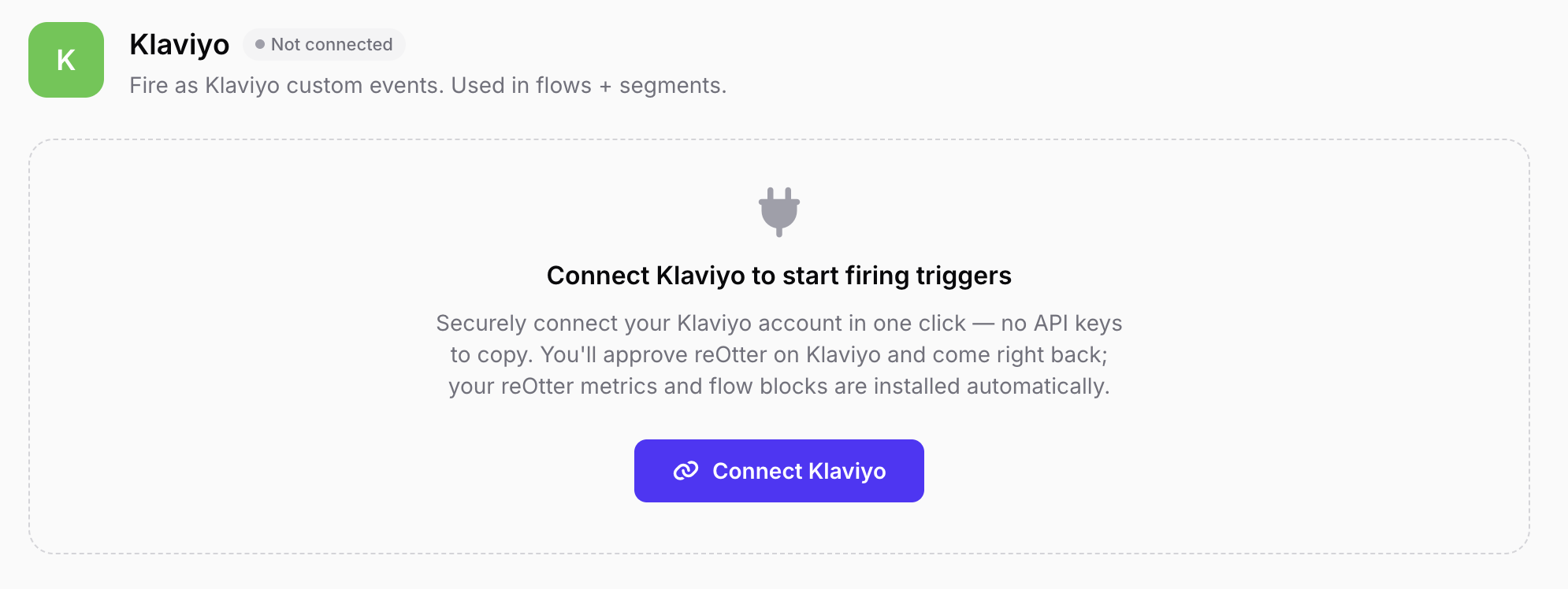
In reOtter, open the Klaviyo channel and click Connect Klaviyo. You'll be sent to Klaviyo's authorization screen to approve reOtter, then returned to reOtter automatically. There are no API keys to copy.
reOtter requests least-privilege OAuth scopes — enough to push events, read your metrics, and read/write flows and templates so it can install the starter assets below. It does not read your customer lists and never sends on your behalf; your flows do the sending.
What happens automatically on connect:
- Your reOtter metrics materialize in Klaviyo. Klaviyo only shows a metric after its first event, so reOtter fires one setup event per trigger to a dedicated setup profile (
klaviyo-setup@reotter.com). Within a moment, everyreOtter - …metric is selectable as a flow trigger. - Reusable flow blocks are installed into your Klaviyo universal content (Hero Product, Reorder Grid, Cross-Sell Grid, Reorder CTA, Discount Badge — covered below).
Once connected, the channel shows three tabs: Trigger Settings, Flow Setup, and Flow Performance.
Step 2 — Configure your triggers
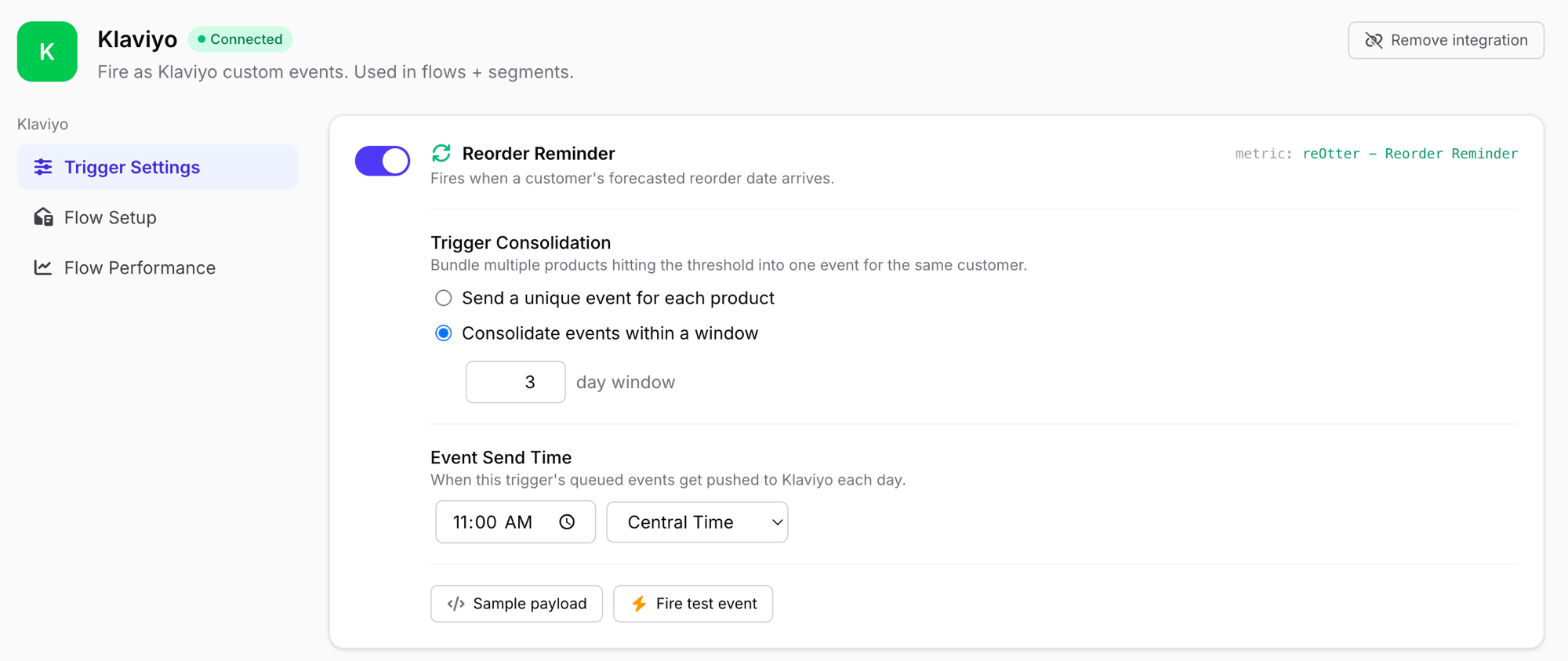
The Trigger Settings tab is where you turn each replenishment trigger on or off and tune how it fires. Changes save automatically — there's no Save button.
The five trigger types
Each trigger maps to its own Klaviyo metric. When you build a flow in Klaviyo, you pick the matching metric from the trigger dropdown:
| Trigger | Fires when | Klaviyo metric name |
|---|---|---|
| Reorder Reminder | A customer reaches their forecasted reorder date | reOtter - Reorder Reminder |
| At Risk | A repeat buyer drifts past their normal cadence | reOtter - At Risk |
| Winback | A customer passes their winback threshold — last-ditch recovery | reOtter - Winback |
| Subscription Bridge | After N one-time orders of the same variant, offer the subscription | reOtter - Subscription Offer |
| Cross-sell | A customer buys product A; reOtter suggests co-purchased product B | reOtter - Cross-Sell Offer |
The metric name uses a regular hyphen with spaces —
reOtter - Reorder Reminder. You won't type it; you select it from Klaviyo's dropdown when setting the flow trigger.
Per-trigger controls
Each enabled trigger card exposes the same two controls:
Trigger Consolidation — what happens when a customer has several products hitting the threshold at once:
- Send a unique event for each product — one Klaviyo event (and one potential message) per product that's due.
- Consolidate events within a window — bundle everything due within an N-day window into a single event for that customer, so they get one message listing all their items instead of a pile-up. This is the default. Typical windows: Reorder Reminder 3 days, At Risk 7, Subscription Bridge 7, Cross-sell 7, Winback 14 — adjust to taste (1–60 days).
Consolidation is why reOtter plays nicely with Klaviyo: one event in means at most one flow message out per customer per window.
Event Send Time — the time of day (and timezone) that this trigger's queued events get pushed to Klaviyo. reOtter batches each trigger's due events and releases them at the time you choose, so you control when messages land rather than having them trickle out at random hours.
Keep the timing in reOtter, not in Klaviyo. reOtter already times, consolidates, and cools down every send before the event fires. Don't add extra time delays in your Klaviyo flow beyond the one built into the starter template — a Klaviyo-side delay would double-up on reOtter's timing and push messages off-schedule. Leave Klaviyo's Smart Sending on; that's complementary.
Step 3 — Preview and test the event
Before you wire up a flow, see exactly what your flow will receive. Each trigger has two buttons:
- Sample payload — toggles an inline JSON preview of the full event contract. Use this as the spec when building your flow's dynamic content.
- Fire test event — sends a real event carrying a full sample payload into your Klaviyo account, attributed to the reOtter setup profile
klaviyo-setup@reotter.com. Nothing reaches a real customer or your own inbox.
After firing a test, open that profile in Klaviyo (search klaviyo-setup@reotter.com under Profiles) and you'll see the event on its activity timeline, with every property expanded. That's your live reference for building dynamic blocks — and a safe way to QA a finished flow end to end.
Understanding the event payload (custom properties)
The event carries a rich set of properties. In Klaviyo templates you reference them with {{ event.* }}. The most useful:
| Property | What it is |
|---|---|
event.storefrontUrl |
The personalized one-click reorder link for this customer. Always set — put it on every CTA. |
event.heroProduct |
The single primary product card (name, image, price, SKU, variant, handle, URL). |
event.heroProduct.productName |
The hero product's name — handy for subject lines. |
event.heroProduct.productImage |
Hero product image URL. |
event.heroProduct.price |
Hero product price. |
event.dueForReorder |
Array of all products due for reorder (reorder & winback flows). Each item has the same card shape as heroProduct. |
event.dueForReorderCount |
How many products are in that array. |
event.crossSellProducts |
Array of suggested add-on products (cross-sell flow). |
event.winbackProducts |
Array of last-bought items to re-pitch (winback / at-risk flow). |
event.subscriptionOffer |
Subscription-bridge details: discountPct, sellingPlanName, subscribeCtaUrl, etc. |
event.hasDiscount |
Boolean — is a discount attached to this event? Branch your flow on it. |
event.bestDiscountLabel |
Human label, e.g. "15% off". |
event.freeShipping |
Boolean — does this event carry free shipping? |
event.totalCartPrice |
Summed price of the cards on the event. |
Each product card (in heroProduct, dueForReorder, crossSellProducts, winbackProducts) carries: productId, variantId, productName, variantName, productImage, price, sku, handle, productUrl, plus forecast context like lastOrderDate, forecastReorderDate, daysUntilReorderForecast, timesPurchased, and daysSinceLastOrder. If a discount rule applies, the card also carries a discount object with the resolved type, value, and human-readable label.
Two sibling link properties sit alongside storefrontUrl: storefrontShopifyUrl (always the Shopify App Proxy URL) and storefrontHostedUrl (your owned storefront subdomain, once provisioned). storefrontUrl always points at your chosen default surface, so it's the one to use.
The event is also de-duplicated by a unique_id (store, trigger, date, and event id), so a customer never gets the same event twice.
Sample reOtter - Reorder Reminder payload (full)
This is the same JSON the Sample payload button shows in-app — a customer due to reorder one product, with a 10% sample discount attached and three cross-sell suggestions riding along:
{
  "properties": {
    "heroProduct": {
      "productId": "6802503303317",
      "variantId": "39997103702165",
      "productName": "Obsidian Espresso",
      "variantName": "12 oz / Whole Bean",
      "productImage": "https://cdn.shopify.com/s/files/1/0000/0000/0000/files/obsidian-espresso-12oz.jpg",
      "imageAlt": "Obsidian Espresso | 12 oz / Whole Bean",
      "productDescription": "",
      "price": 21,
      "sku": "",
      "handle": "obsidian-espresso",
      "productUrl": "https://example.myshopify.com/products/obsidian-espresso",
      "tags": [],
      "metafields": [],
      "lastOrderDate": "2026-04-21",
      "forecastReorderDate": "2026-05-15",
      "quantityOfLastOrder": 1,
      "forecastReorderDays": 24,
      "timesPurchased": 3,
      "daysSinceLastOrder": 31,
      "daysUntilReorderForecast": 7,
      "winbackDate": "2026-06-22",
      "daysUntilWinback": 31,
      "targetTriggerDate": "2026-05-15",
      "triggerEnabled": true,
      "isConsolidated": true,
      "discount": {
        "id": "sample_discount",
        "variant_id": "",
        "type": "percentage",
        "value": 10,
        "label": "10% off — sample (configure real rules under Discounts)"
      }
    },
    "dueForReorderCount": 1,
    "dueForReorderIds": ["6802503303317"],
    "dueForReorder": [
      { "productId": "6802503303317", "productName": "Obsidian Espresso", "…": "same card shape as heroProduct" }
    ],
    "winbackProductCount": 0,
    "winbackProductIds": [],
    "winbackProducts": [],
    "totalCartPrice": null,
    "crossSellProductCount": 3,
    "crossSellProductIds": [
      "6802503303318",
      "6802503303319",
      "6802503303320"
    ],
    "crossSellProducts": [
      {
        "productId": "6802503303318",
        "variantId": "39997103702166",
        "productName": "Canyon Dark Roast",
        "variantName": "12 oz / Whole Bean",
        "productImage": "https://cdn.shopify.com/s/files/1/0000/0000/0000/files/canyon-dark-roast-12oz.jpg",
        "imageAlt": "Canyon Dark Roast | 12 oz / Whole Bean",
        "price": 21,
        "handle": "canyon-dark-roast",
        "productUrl": "https://example.myshopify.com/products/canyon-dark-roast",
        "…": "same card shape as heroProduct"
      },
      {
        "productId": "6802503303319",
        "variantId": "39997103702167",
        "productName": "Morning Ritual Blend",
        "variantName": "12 oz / Whole Bean",
        "productImage": "https://cdn.shopify.com/s/files/1/0000/0000/0000/files/morning-ritual-blend-12oz.jpg",
        "imageAlt": "Morning Ritual Blend | 12 oz / Whole Bean",
        "price": 21,
        "handle": "morning-ritual-blend",
        "productUrl": "https://example.myshopify.com/products/morning-ritual-blend",
        "…": "same card shape as heroProduct"
      },
      {
        "productId": "6802503303320",
        "variantId": "39997103702168",
        "productName": "Cloud Forest Decaf",
        "variantName": "12 oz / Whole Bean",
        "productImage": "https://cdn.shopify.com/s/files/1/0000/0000/0000/files/cloud-forest-decaf-12oz.jpg",
        "imageAlt": "Cloud Forest Decaf | 12 oz / Whole Bean",
        "price": 21,
        "handle": "cloud-forest-decaf",
        "productUrl": "https://example.myshopify.com/products/cloud-forest-decaf",
        "…": "same card shape as heroProduct"
      }
    ],
    "storefrontUrl": "https://example.myshopify.com/apps/reotter/preview/replenishment_due?t_id=te_0000000000000000",
    "storefrontShopifyUrl": "https://example.myshopify.com/apps/reotter/preview/replenishment_due?t_id=te_0000000000000000",
    "storefrontHostedUrl": "https://example.myshopify.com/apps/reotter/preview/replenishment_due?t_id=te_0000000000000000",
    "hasDiscount": true,
    "bestDiscountLabel": "10% off — sample (configure real rules under Discounts)",
    "bestDiscountType": "percentage",
    "bestDiscountValue": 10,
    "freeShipping": false
  },
  "unique_id": "3f2a9c81d4e07b56a1c2d3e4f5a6b7c8_replenishment_due_2026-05-22_e_7c1f9a204b8d"
}
The Cross-sell, Winback, and Subscription Bridge events share this envelope and swap in their own product array (crossSellProducts, winbackProducts) or add a subscriptionOffer object (discountPct, sellingPlanName, subscribeCtaUrl, and more).
Step 4 — Build your flows
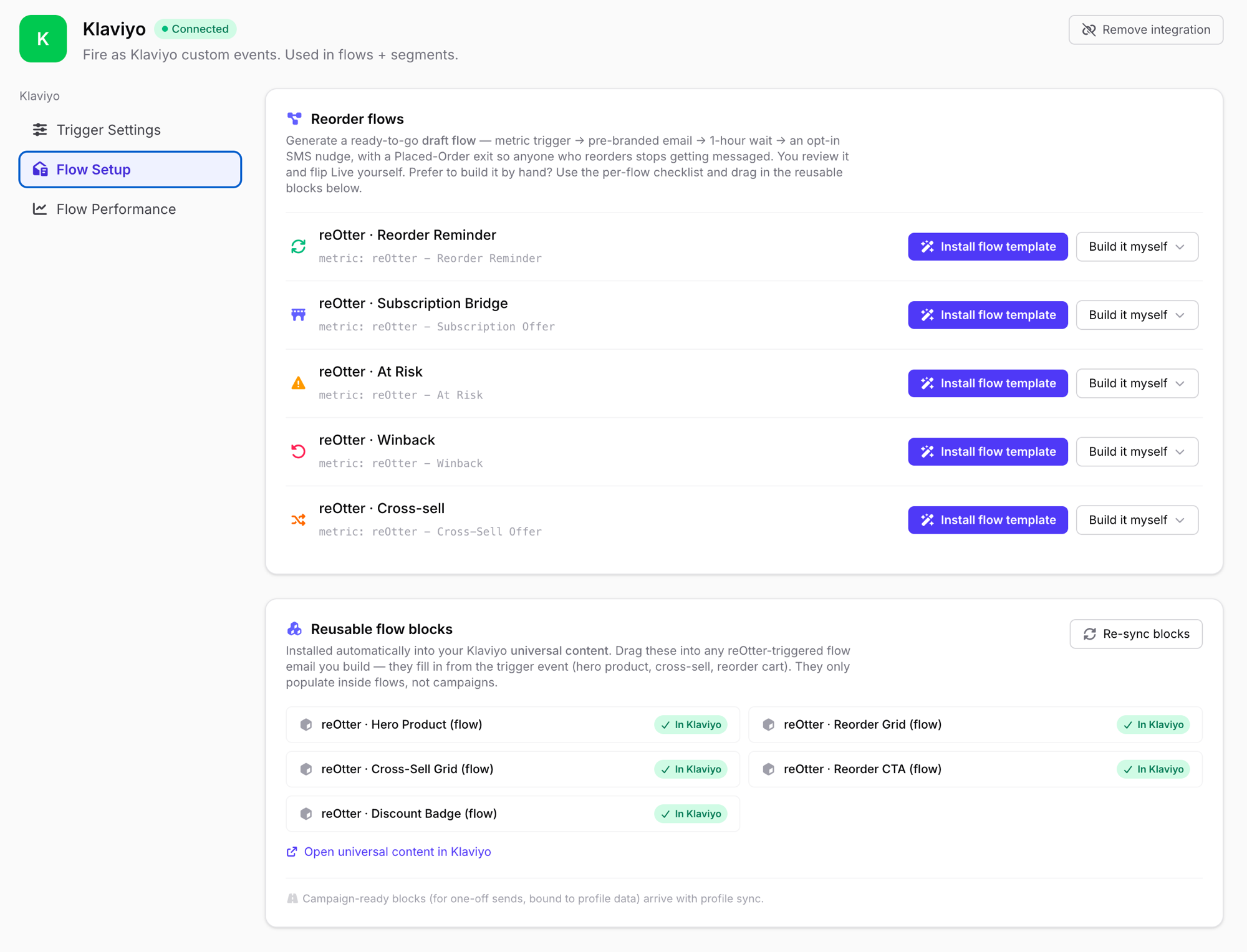
The Flow Setup tab is where each trigger becomes a Klaviyo flow. You have two paths per trigger: let reOtter generate a draft for you, or build it by hand.
Option A — Install a starter flow (recommended)
Click Install flow template on a trigger to generate a ready-to-go draft flow in your Klaviyo account. You pick the shape:
- Email + SMS (recommended) — Email → 1-hour wait → an SMS to subscribers who've opted in.
- Email only
- SMS only
reOtter creates the flow as a draft with the metric trigger already set and a pre-branded message in place. You then review it, set the sender, and flip it Live yourself — nothing goes out until you do. Once a draft exists, the button becomes Re-create flow, and an Open in Klaviyo link takes you straight to it.
Add the reorder exit. After reviewing the draft, add a Klaviyo Flow Filter on Placed Order so anyone who reorders exits the flow before the SMS. That way a customer who's already restocked stops getting messaged. (This one filter is the only manual step the starter draft leaves for you.)
Option B — Build it myself
Prefer to build by hand? Click Build it myself for a step-by-step checklist. The shape:
- In Klaviyo, Create Flow → Build your own.
- Set the trigger to Metric and choose the matching reOtter metric (e.g.
reOtter - Reorder Reminder). - Add a Flow Filter so buyers exit when they reorder: What someone has done (or not done) → Placed Order → equals 0 → since starting this flow.
- Add an Email action. Use one of reOtter's installed templates (
reOtter · Reorder Reminder) or your own, and drag in the reusable blocks below. - Add a Time Delay of 1 hour after the email (only if you're adding SMS).
- Add a Conditional Split on Can receive SMS marketing so only opted-in profiles continue.
- On the YES branch, add an SMS action with your reorder copy and the
{{ event.storefrontUrl }}link. - Leave Smart Sending on. Don't add extra delays — reOtter already handles timing and consolidation.
- Review both messages, then set the flow Live.
Reusable flow blocks (universal content)
When you connect, reOtter installs five drag-and-drop blocks into your Klaviyo universal content. Drop them into any reOtter-triggered flow email and they fill in from the trigger event:
- reOtter · Hero Product (flow) — the primary product card, from
event.heroProduct. - reOtter · Reorder Grid (flow) — the full "in your cart" grid, from
event.dueForReorder. - reOtter · Cross-Sell Grid (flow) — "goes great with these," from
event.crossSellProducts. - reOtter · Reorder CTA (flow) — a one-click button to
event.storefrontUrl. The link carries its own attribution, so don't append UTM parameters. - reOtter · Discount Badge (flow) — renders only when the event carries a live discount, so it never promises an offer that isn't there.
These populate inside flows only, not one-off campaigns, because they read from the trigger event. If you change your brand styling in Klaviyo, use Re-sync blocks to refresh them. (Campaign-ready versions bound to profile data arrive with profile sync.)
Flow, template, and block names use a middot —
reOtter · Reorder Reminder. Metric names use a hyphen —reOtter - Reorder Reminder. Same trigger, two naming conventions; this is so the metric you trigger on is visually distinct from the flow you build.
Discounts and conditional logic
If you attach a rules-based discount to a trigger, reOtter resolves it per customer at send time — exact parity with what their storefront will honor, so an email never promises an offer the page won't apply. Your flow can branch on a single boolean instead of walking the product array:
{% if event.hasDiscount %}
  Save {{ event.bestDiscountLabel }} when you reorder today.
{% endif %}
{% if event.freeShipping %}
  Plus free shipping on this order.
{% endif %}
Measuring results
The Flow Performance tab reads stats back from Klaviyo for every flow triggered by a reOtter metric — including flows you built by hand — so you can see which messaging works best.
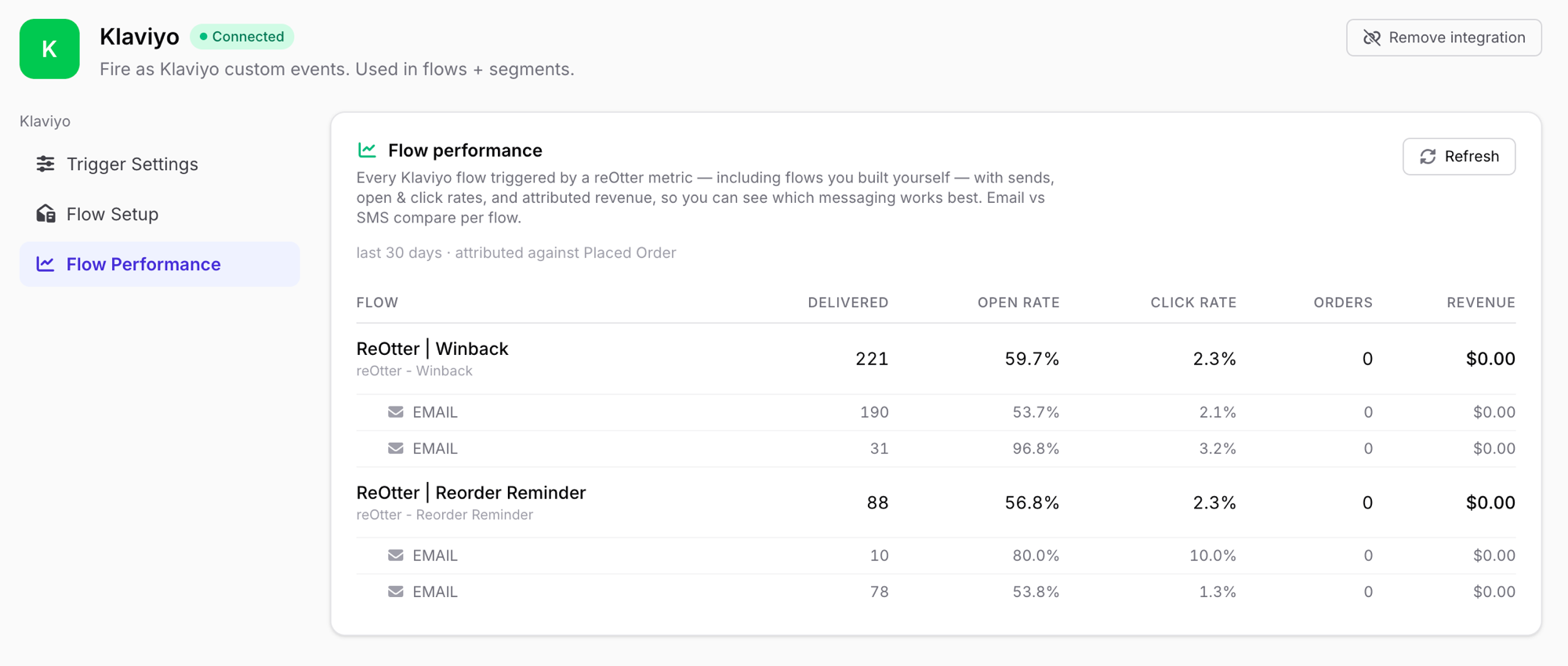
For each flow you get Delivered, Open rate, Click rate, Orders, and Revenue, with Email vs SMS broken out as sub-rows so you can compare channels within a flow. Revenue is attributed against your Placed Order metric over the last 30 days. A flow qualifies on its trigger metric, so hand-built flows on reOtter triggers count too.
Setup checklist
- Connect Klaviyo — one-click OAuth; blocks install and metrics materialize automatically.
- Configure triggers — enable the triggers you want, set each one's consolidation window and send time.
- Fire a test event — confirm the metric and inspect the payload on the
klaviyo-setup@reotter.comprofile. - Build the flow — Install flow template (then add the Placed Order exit) or build it by hand.
- Go live — review the draft, set your sender, flip it Live.
- Watch Flow Performance — compare email vs SMS and iterate on copy.
Does reOtter replace my existing Klaviyo flows?
No. reOtter is purely additive. It introduces new metric events into Klaviyo and never modifies your welcome series, abandoned cart, browse abandonment, or post-purchase flows — those keep running exactly as they do today. You're layering replenishment-triggered flows on top of your existing setup, so there's nothing to migrate and nothing to risk. If you switch a reOtter trigger off, the corresponding flow simply stops receiving events; everything else is unaffected.
FAQ
Connect reOtter to Klaviyo → Install reOtter free
Frequently asked questions
- How does reOtter connect to Klaviyo?
- One click. From the Klaviyo channel in reOtter you click Connect Klaviyo, approve reOtter on Klaviyo's OAuth screen, and you're returned to reOtter — no API keys to copy. On connect, reOtter automatically installs its reusable flow blocks into your Klaviyo universal content and fires a setup event for each trigger so your reOtter metrics appear in Klaviyo right away.
- What Klaviyo permissions does reOtter request?
- Least-privilege scopes: read your account, write events (the reorder metrics), read metrics, and read/write flows and templates (so reOtter can install starter flow drafts, the email templates, and the reusable blocks). reOtter never reads your customer lists or sends on your behalf — your flows do the sending.
- Do I have to rebuild my Klaviyo templates?
- No. reOtter sends only the event and its properties. Your Klaviyo flow renders the message using your existing templates and dynamic blocks, pulling product name, image, quantity, and the storefront link from event properties. Your branding, fonts, and deliverability stay exactly as they are today. reOtter can also install ready-made starter templates and reusable blocks if you'd rather not start from scratch.
- How do I test the integration before going live?
- Every trigger has a Sample payload button (preview the exact JSON your flow will receive) and a Fire test event button. Firing a test sends a real event with a full sample payload to a dedicated reOtter setup profile in your Klaviyo account — klaviyo-setup@reotter.com — so you can confirm the metric, inspect the properties, and build your flow against real data without messaging a single customer.
- Can I use Klaviyo segments and A/B tests with reOtter events?
- Yes. Because the event lives in Klaviyo, you can filter the flow by any segment, hold out audiences, run A/B template tests, and apply smart sending and quiet hours. reOtter decides when each customer is due; Klaviyo decides who in your segments actually receives it and how.
- Does this work for both Klaviyo email and Klaviyo SMS?
- Yes. A single reOtter event can branch in your Klaviyo flow to email, SMS, or both based on consent and channel preference. The starter flow template ships as Email → 1-hour wait → opt-in SMS. The reorder storefront link works the same in either channel, so an SMS reorder reminder lands the customer on the same one-click page as the email version.
- Will reOtter events interfere with my existing Klaviyo flows?
- No. reOtter adds new metric events; it never touches your welcome, abandoned cart, or post-purchase flows. Those keep running untouched. You're adding replenishment-triggered flows alongside what you already run, not replacing or rewiring anything in your Klaviyo account.